


QuickPanel Wiki Engraving
Choosing the engraving tool
Engraved text from 1 to 10 mm, cut with the 0.2 mm and 0.4 mm tips (black anodising, QuickPanel font):
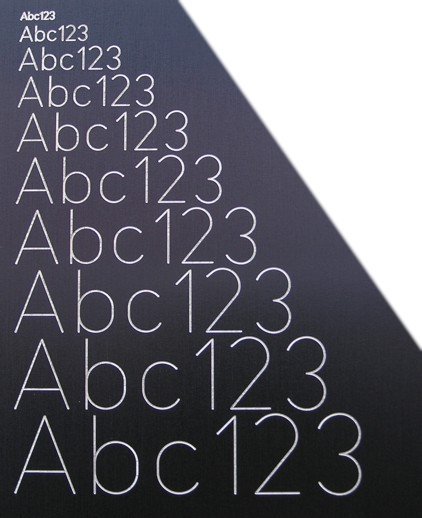
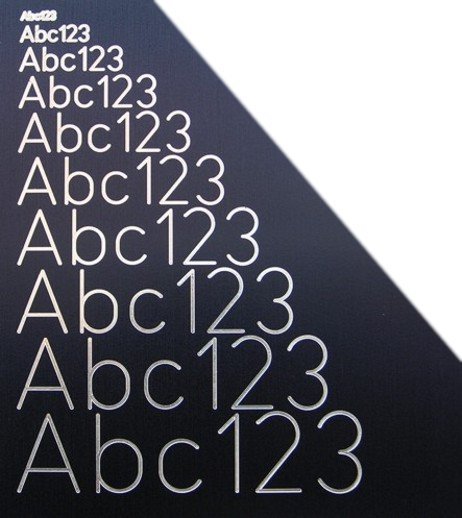
Single-line fonts
With single-line fonts (e.g. QuickPanel) the tool follows the middle of each stroke, so the tool sets the line width. Choose it for the text in the Engraving tool field:
- 0.2 mm – a fine line, suited to small lettering,
- 0.4 mm – a stronger line, easier to read from a distance,
- 1 mm – a mill for wide lines and large lettering.
The app draws the groove at its real width, so you see the result while designing.
Outline fonts
With outline fonts (Montserrat, Roboto Condensed) the whole letter area is milled and the app picks the tools itself: a larger one clears the middle, a smaller one finishes the corners and walls. Change the stroke weight with the Boldness field.
At boldness 0 the letters are cut whole from a capital height of about 4 mm (Montserrat) and 3.3 mm (Roboto Condensed). Below that the app marks letters that would not be cut whole – use the Fix button or make the text larger.